How to choose a look
Activate Weather FOG in Global Resources, open the active pack and press its gear icon to choose a preset. Only one style is selected at a time. This resource pack changes the fog, sky and atmosphere; it does not add dangerous storms or survival mechanics.
Nine atmosphere presets
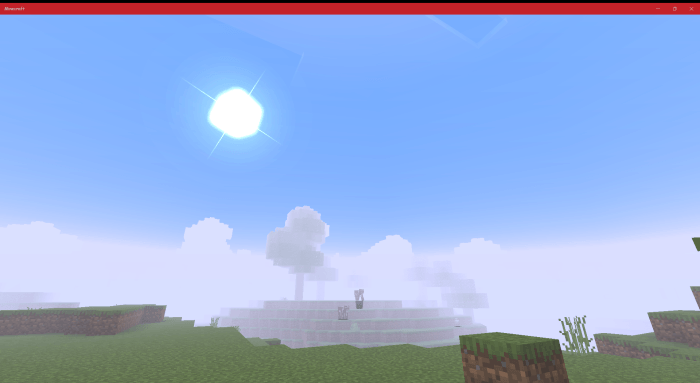
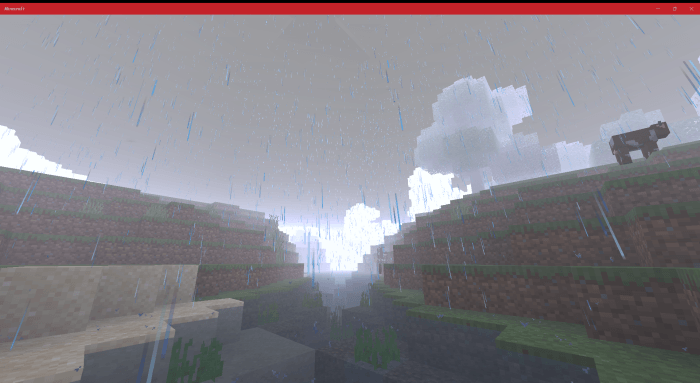
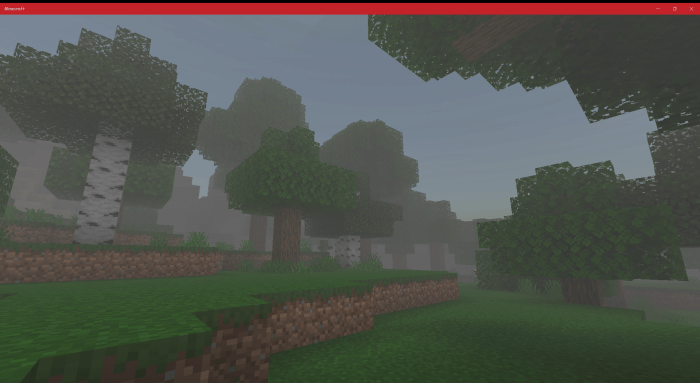
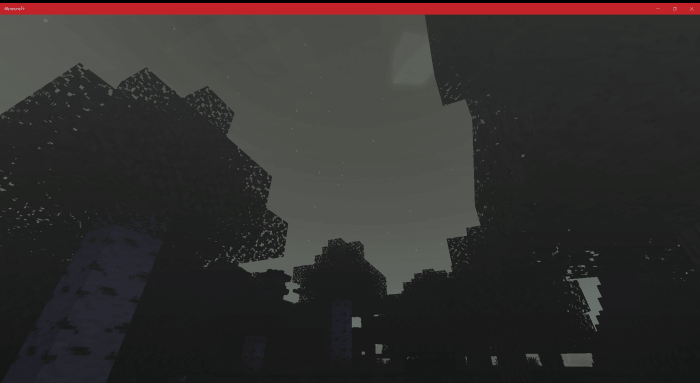
- Cloudy: a soft, cloudy haze. Dark: a gloomy, low-visibility atmosphere.
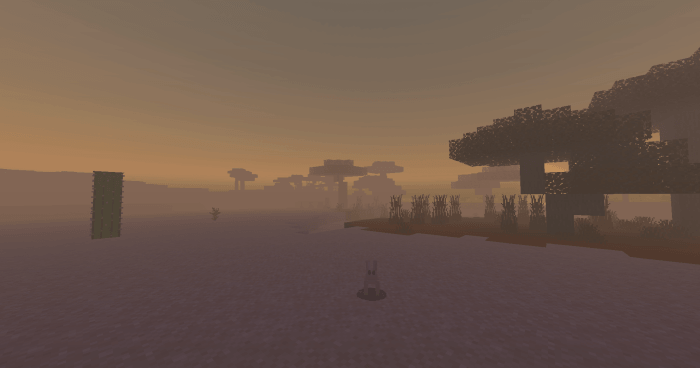
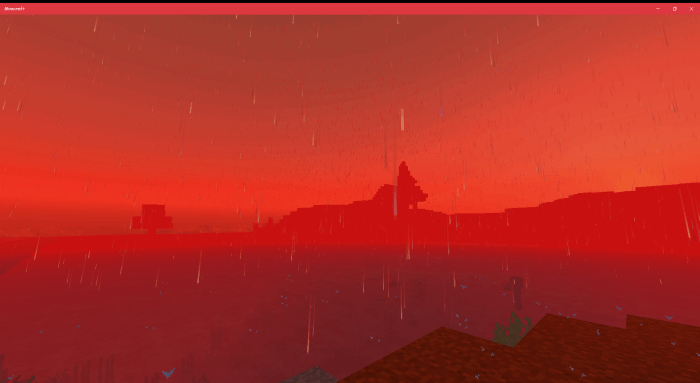
- Sand Storm: warm dusty tones. Red Mist: an intense red fog.
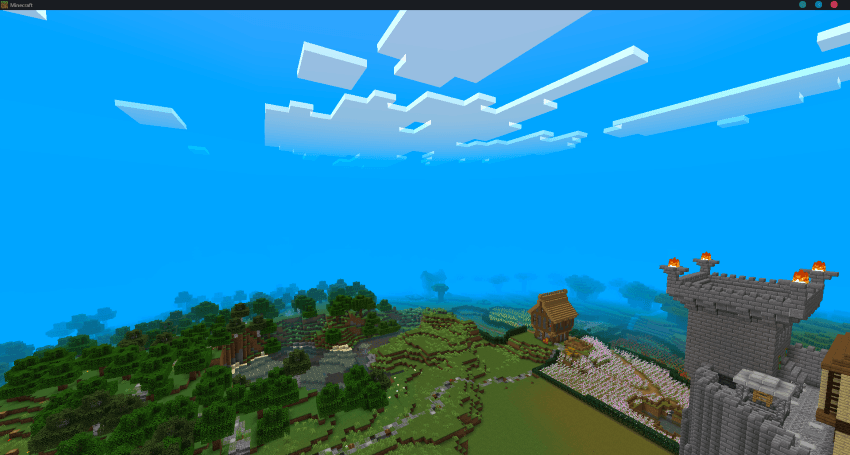
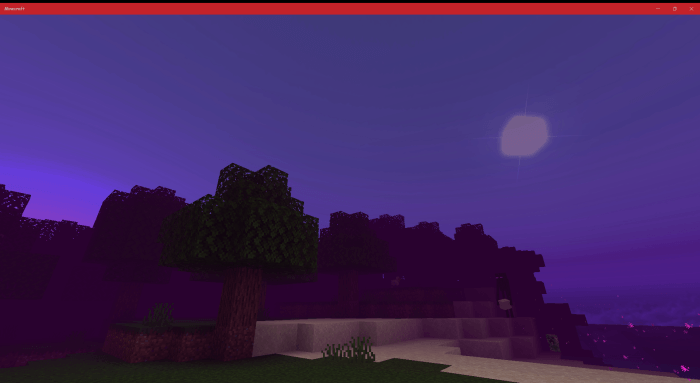
- Midnight Purple, Toxic Waste and Blue Mist: purple, green and blue palettes.
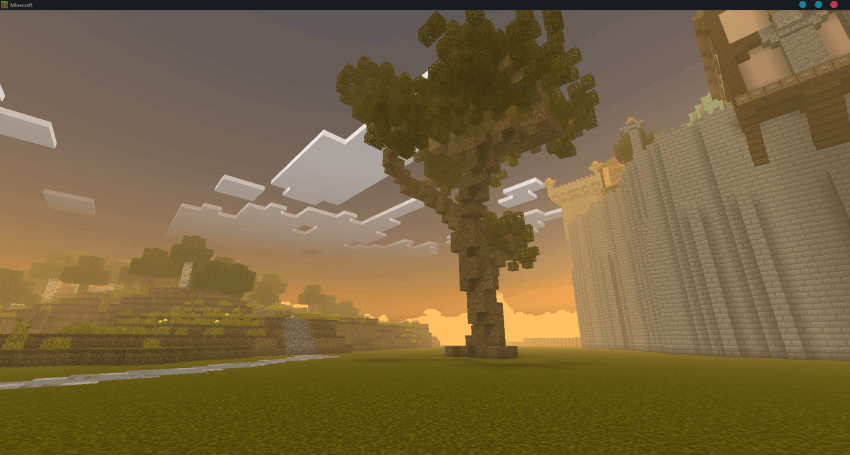
- Piss Filter: a yellow-brown, PS3-era look. Alpha: classic-style fog with a modern presentation.
Graphics settings
Vibrant Visuals is recommended when supported, but the author also allows using the pack on devices without that mode. Suggested settings: Low shadows, Medium clouds, Low volumetric fog, Low reflections and 50% bloom. The result varies with the chosen graphics mode.
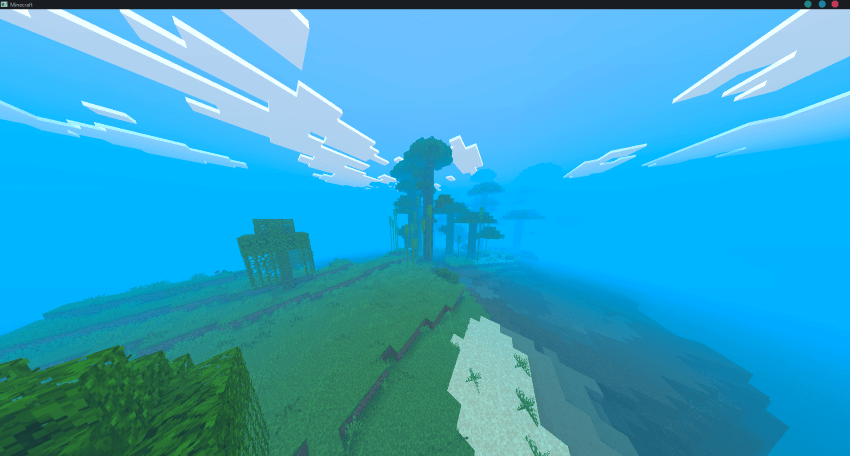
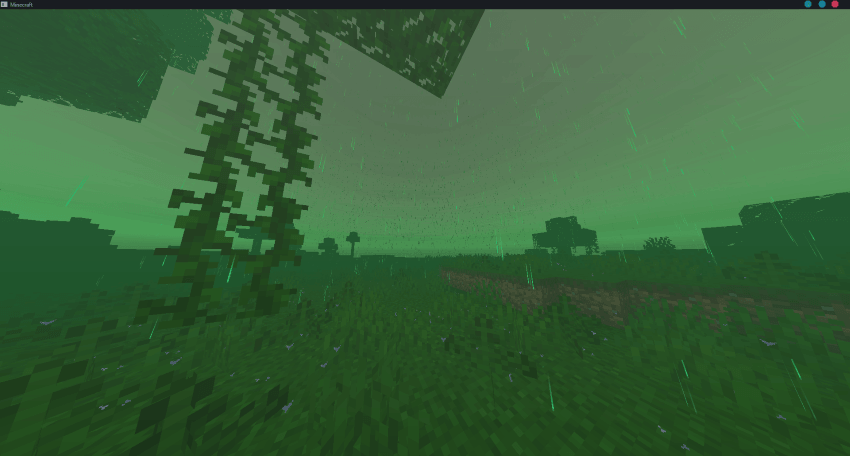
Lower render distance makes the fog appear denser. Adjust brightness to keep the scene readable, especially with Dark and the strongly tinted presets. The Render Clouds video option switches the special clouds on or off.