Author: kkr1212
Proximity Chat makes nearby players audible while distant conversations fade out. Spatial audio also follows the speaker’s direction. Voice is carried by a separate web room, mobile client or optional bot, not by Minecraft’s normal audio connection. Every participant needs a microphone and a connection to the same voice room. The game addon supplies controls and status icons.
1. Select the packs
This download combines the author’s Voice Chat 1.0.2 and optional Text Chat 1.1.3 packages without changing their contents. For a normal world, activate MCBE-ProxVC addon BP and MCBE-ProxVC addon RP. The alternative BP for constant connection is for a dedicated Bedrock server. Activate only ONE of the two voice behavior packs, never both. The shared resource pack shows speaking and muted-player icons.
Add MCBE-ProxTC only if you also want ordinary text messages to reach nearby players rather than the whole world. Text Chat requires Beta APIs. The constant-connection server BP also requires Beta APIs. These requirements do not mean that every user must enable both optional behavior packs.
2. Create a voice room as host
Open the voice-room setup, choose the desired settings and start a session. Keep the resulting Room ID, participant link and Minecraft connection command. Use the command generated for YOUR session; an address visible in a screenshot belongs to an example and must not be copied.
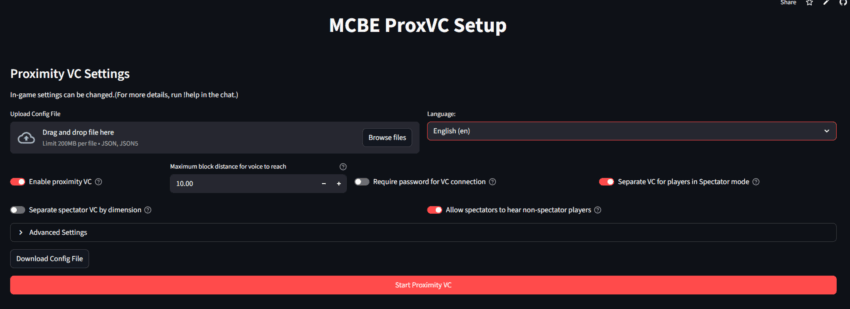
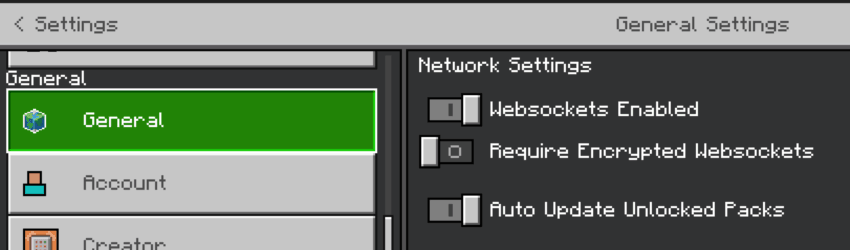
The world host must enable WebSockets Enabled in Minecraft’s network/general settings and turn Require Encrypted WebSockets off. These switches matter on Minecraft 1.21.60 and newer. Then execute the generated connection command in the game using an account with permission to run it. A successful-connection message should appear in chat.
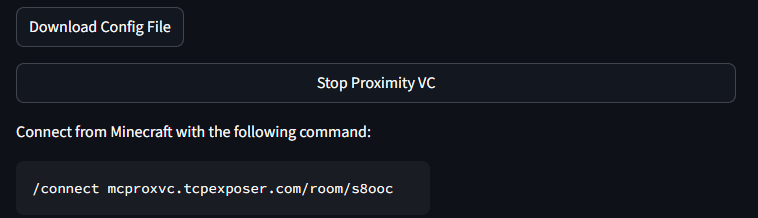
If the host is using a smartphone, join the voice call before executing the Minecraft connection command. Verification-code mode is unavailable in this mobile-host connection flow. Do not confuse creating the room with joining it: the host also needs an active voice client to speak.
3. Connect every participant
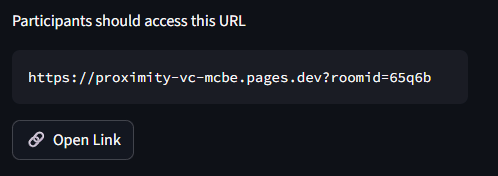
Each player opens the connection page or the room link supplied by the host. Enter the Room ID and the player name expected by the system, allow microphone access and connect. The room link can fill the ID automatically. Check the in-game name with /pvc:name; without the addon, use !name. Spaces or non-Latin characters can be normalized, so copying the checked name is safer than guessing.
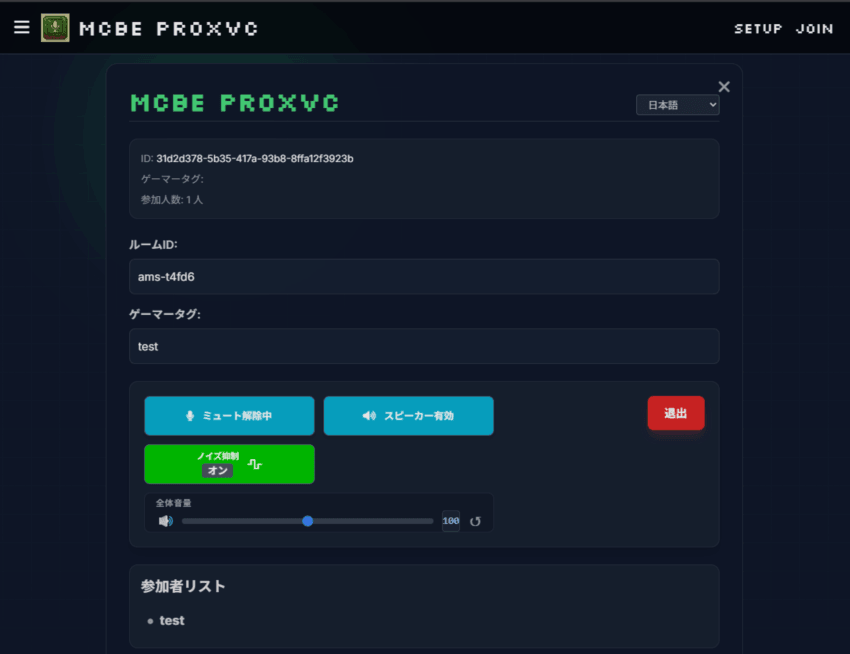

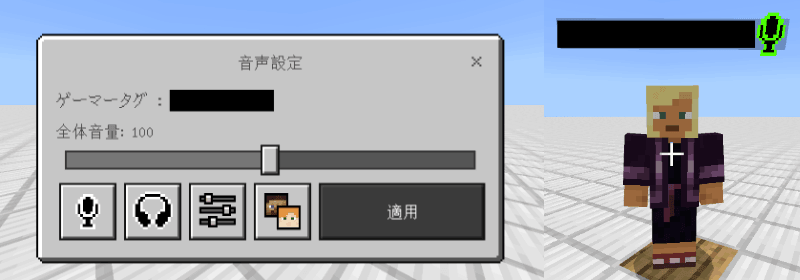
Use /pvc:vc-setting to open the voice-control panel and /pvc:vc-help for help. Personal controls include /pvc:mute, /pvc:deafen, /pvc:master-volume and /pvc:user-volume. The resource pack adds indicators above players so you can distinguish speaking, muted and connected participants.
4. Distance, spectator and text-chat settings
An operator can use /pvc:distance with a number of blocks, /pvc:proximity with true or false, and /pvc:verify to control connection verification. /pvc:spectator separates spectator conversations; /pvc:spec-listen allows spectators to hear other modes; /pvc:spec-dim separates spectator communication by dimension. /pvc:output controls status messages, /pvc:sync synchronizes voice and text settings, /pvc:lang selects en, ja or zh, and /pvc:vc-config shows configuration. /pvc:vc-connect and /pvc:disconnect control the voice connection. Use autocomplete or the help panel for the arguments accepted by the installed pack.
For Text Chat, enable its BP and Beta APIs, then use /pvc:tc-help and /pvc:tc-config. Its distance, proximity, spectator, output, synchronization and language options follow the same roles as above. With synchronization enabled, voice and text can use the same range. Disabling proximity removes the distance limit; it is not the same as disconnecting the voice client.
5. Android and iPhone
On Android, use the official client release for background calling and allow notifications. On iPhone, open Minecraft first, switch to the browser and join the call, then return to Minecraft and enter the world. Avoid letting the device sleep during the call; reconnect if sleep interrupts it. If another voice app is already using the microphone, leave that call before joining the web room.
6. Dedicated servers
For the ordinary server connection, set op-permission-level=4 in server.properties, apply the server configuration and use the generated Minecraft connection command. This permission level also lets operators run powerful server commands, including stopping the server, so reserve operator access for trusted administrators. The WebSocket settings still apply.
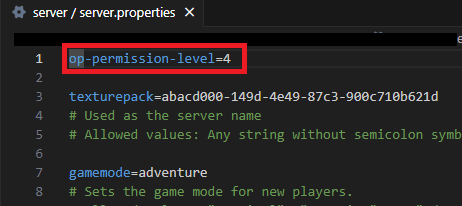
Permanent operation while the host is offline is a different setup for Bedrock Dedicated Server. Download the server helper from the official releases, unpack it and create a SkyWay project/application. Obtain its application ID and secret, then prepare TCPExposer subdomains. Enter those values and the connection settings in config.jsonc. When the helper and Minecraft server run on the same computer, the second subdomain is not needed. Keep application secrets private.
Complete the helper’s setup, activate the constant-connection BP together with the shared RP, enable Beta APIs and allow @minecraft/server-net in the server’s config/default/permissions.json. Start the helper with start.cmd and execute its generated /pvc: connection command in Minecraft. The helper must remain running. The server setup guide shows the current configuration fields; this server-only route is not an installation method for a normal phone world.
7. Optional bot connection
The project also supports a Discord voice bot as an alternative client. Use the official bot list to select it. In the messaging service, /start creates a room with optional distance, room_id and config parameters. Connect Minecraft using the resulting setup instructions. To join an existing room, enter the bot’s voice channel first and run /join with room_id and name. One bot instance serves only one user per server; other participants need separate bot instances/channels or the web/mobile client.
Bot commands: /help opens help; /stop ends the hosted room; /leave disconnects your bot client; /status checks the connection, optionally by room_id; /config shows configuration; /bot lang changes language. Administrators manage allowed roles with /bot permission_start and /bot permission_admin, using add, remove, list or reset. These are bot commands, not commands to paste into Minecraft chat.
8. If something does not work
If there is no audio, or distant players remain audible, leave the call and join it again. Check the Room ID, the exact player name, microphone permission and whether Minecraft reported a successful connection. Confirm that only one voice BP is active. On mobile, close competing calls and repeat the platform-specific connection order. If text messages stay global, check that the TC pack and Beta APIs are enabled and proximity is on.