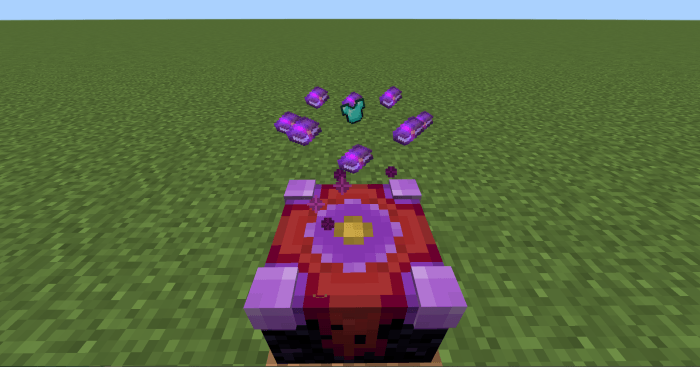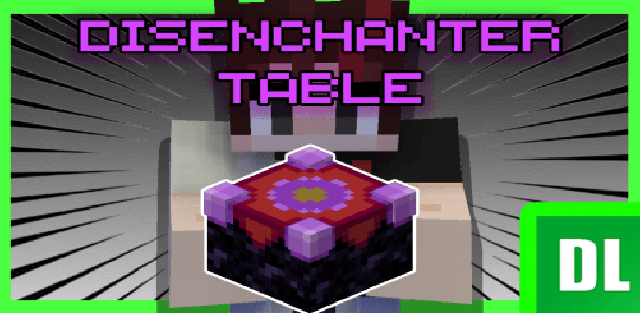
Disenchanter Table adds a new working block to Minecraft Bedrock. It introduces a separate disenchanting mechanic, giving players more control over enchanted items and books.
The addon is useful in survival when you want to keep valuable enchantments, break down unwanted gear or move enchantments onto books for later use. Everything works through a custom table interface, without complicated commands or experimental features.
Crafting the table
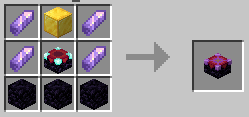
First, craft the Disenchanter Table using the recipe shown by the addon. The recipe uses amethyst shards, a gold block, an enchanting table and obsidian.
Once placed, the block opens its own interface. It is adjusted for both the classic UI profile and the pocket UI profile in Minecraft Bedrock.
How to use
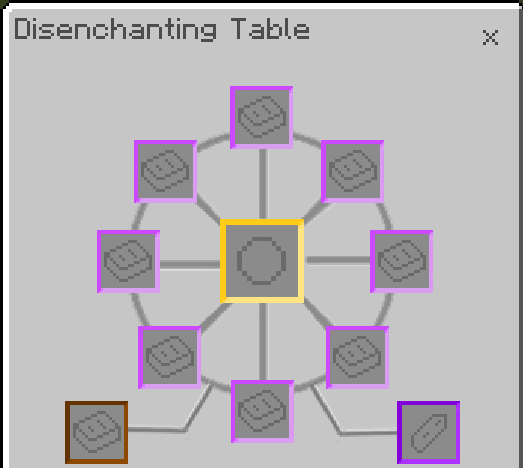
- put the enchanted equipment or enchanted book in the middle slot;
- place regular books around the middle slot, one book per slot;
- add an amethyst shard in the bottom-right slot;
- wait for processing and take the disenchanting result.
Interface
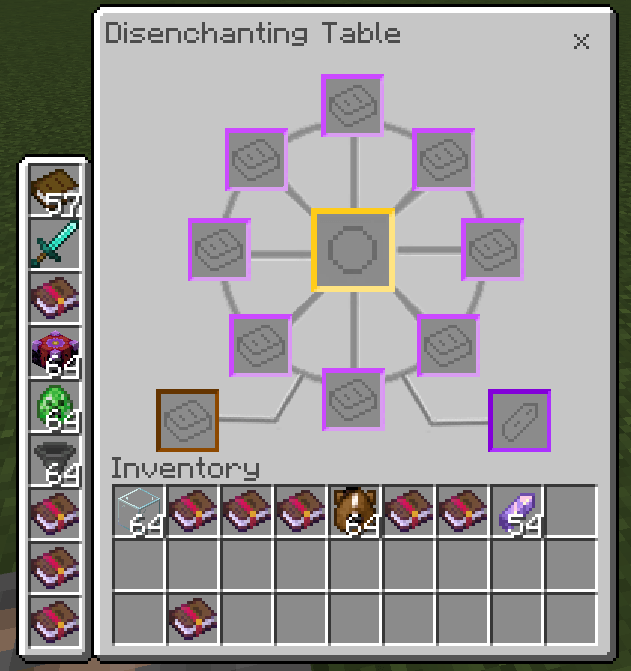
The author slightly changed the UI for PCs and mobile devices so the table screen fits different UI profiles. In the classic profile it appears as a custom disenchanting window, while in the pocket profile the hotbar is moved to the left side.
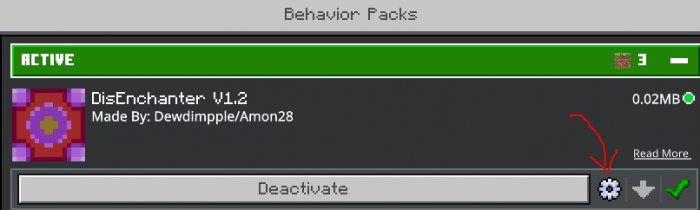
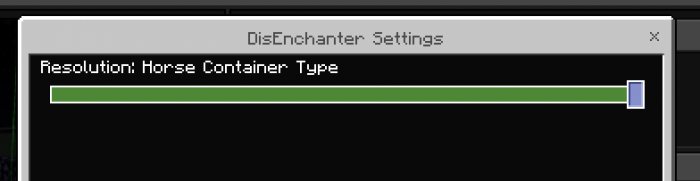
If the UI breaks and turns into a normal chest, change the table setting in the behavior pack. There are two container options: Chest container and Horse container. Chest container is the default, but when other addons cause conflicts, the author recommends Horse container because it has a higher chance of working correctly.
Compatibility
The main compatibility risk is the UI. When used with other addons, the table container can sometimes display incorrectly. Switching the container mode in the behavior pack settings can help restore proper behavior.
The page does not list any required experimental toggles, so the publication uses settings=0.
V6.4 update
- added PBR capability in the resource pack;
- improved addon code.
Screenshots