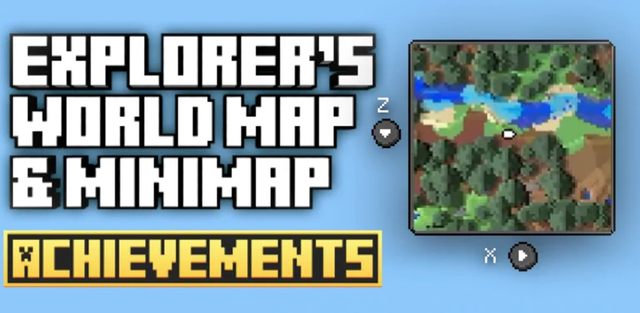
The addon is designed for exploration in single-player and cooperative worlds. The map fills in as players travel, making it easier to remember routes and navigate without constantly checking coordinates.
Minimap and world overview
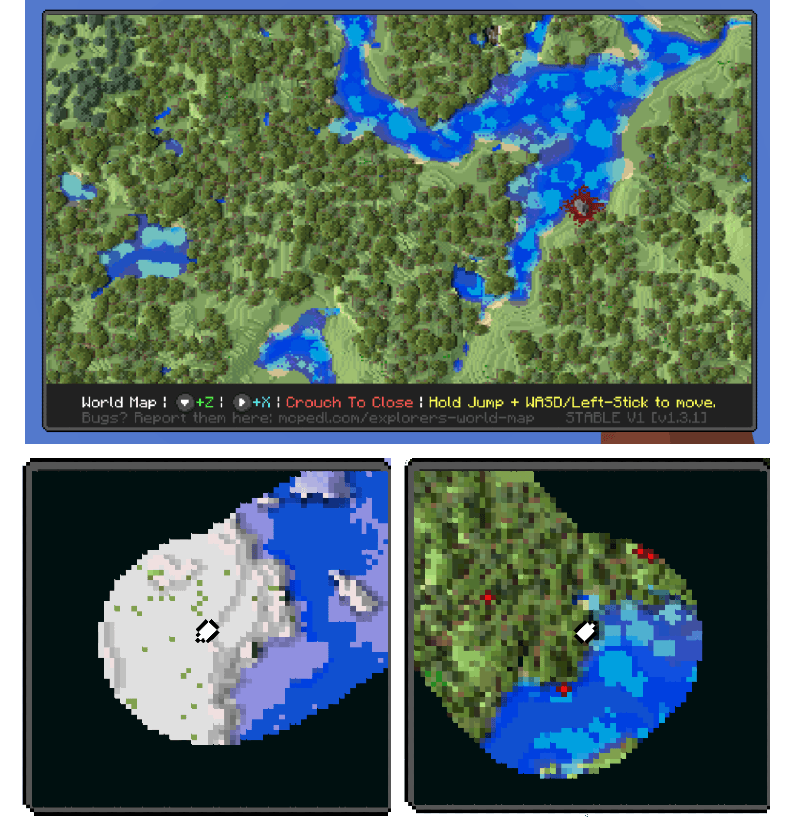
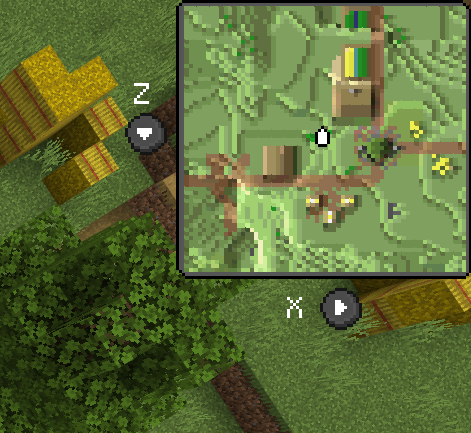
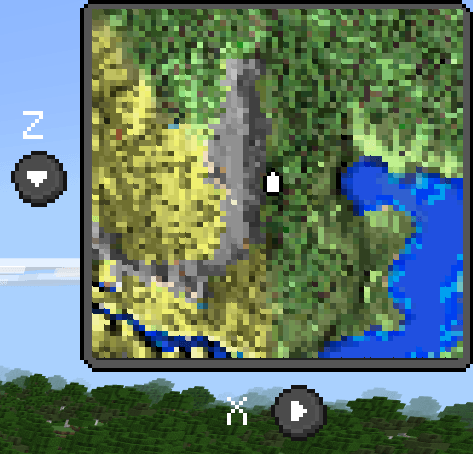
The real-time minimap shows nearby terrain, X and Z directions, landmarks, and selected markers. The full-screen atlas combines discovered areas into one large map.
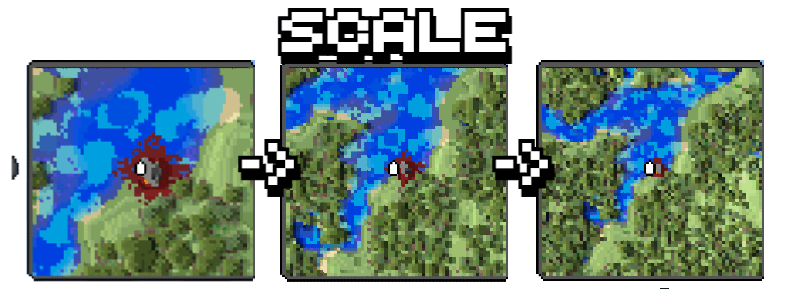
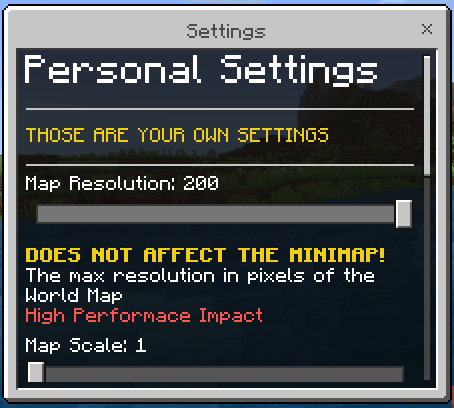
Scale can be changed in the settings. Optional sneak-to-zoom behavior and configurable resolution help balance visibility and performance.
Markers and cave mode
The map can display entities and custom waypoints. A separate cave mode helps players read underground passages and find areas they have already explored.
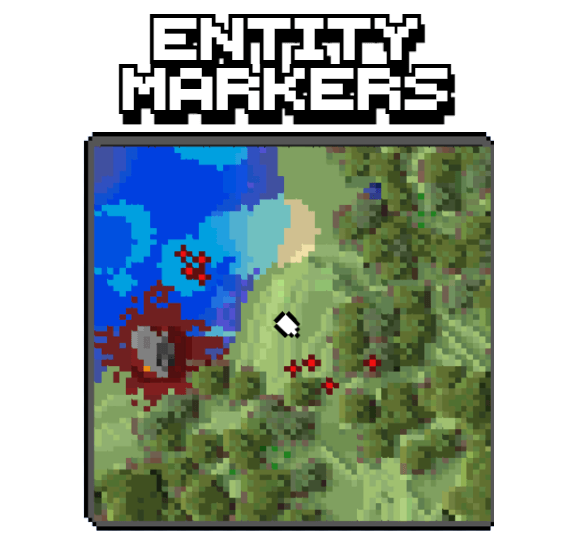
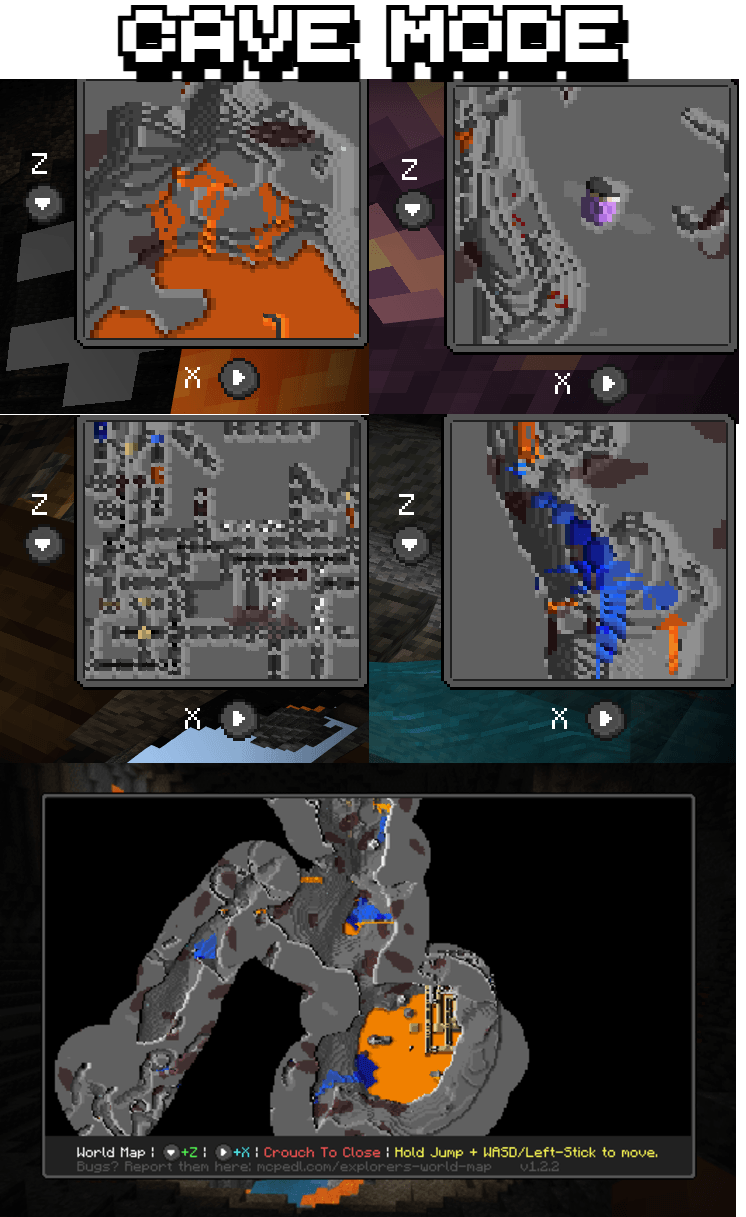
Minimap during gameplay
The interface stays compact and leaves the main view clear. Different scale levels can focus on nearby builds or show a wider area around the player.
Full-screen map
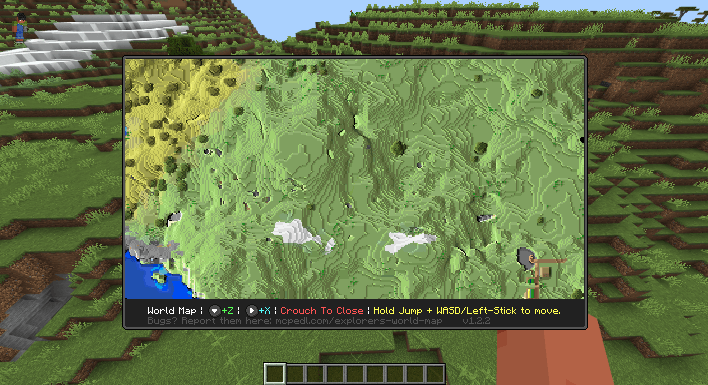
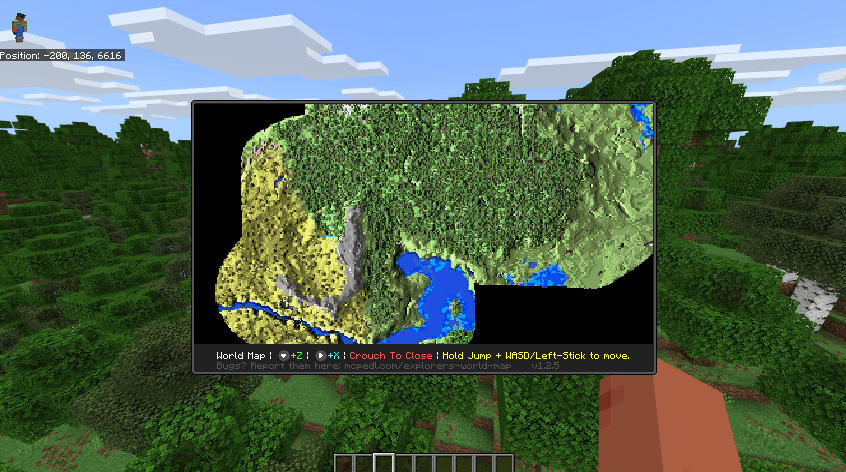
The /ewm:map command opens the explored-world atlas. Hold Jump and use WASD or the left stick to move around it, then crouch to close it. Players in the same world share discovered areas.
Commands
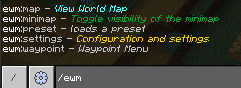
- /ewm:settings - personal settings and world configuration.
- /ewm:map - open the full-screen map.
- /ewm:minimap show or hide - show or hide the minimap.
- /ewm:preset - quickly select a settings preset.
- /ewm:waypoint - open the waypoint menu.
Settings
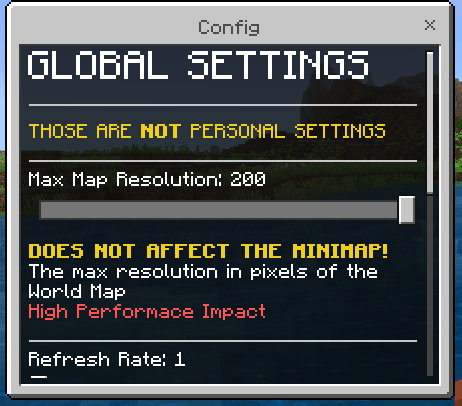
Global options control the maximum resolution and refresh rate for the world. Personal options adjust the scale, quality, and interface shown to an individual player.
Which file to choose
- Stable 1.3.1 - the achievements-friendly release that does not need Beta API. It targets Minecraft 26.0 and newer, but does not display custom blocks from other addons.
- Full 2.0.6 - a newer and faster branch that can display blocks from other addons. It requires the Beta API experiment and some features may be less stable.
- 1.1.0 Legacy - the previous file for Minecraft 1.21.90 and newer, retained for older worlds.
Both current variants can conflict with some addons, especially packs that modify the game interface.